Getting started
A quick guide for first-time JamoMoa users.
1. Install
How you install depends on where you got it.
- Mac App Store (coming soon) — click Get in the App Store and it installs and launches automatically. No first-launch warning.
- Direct download (GitHub · DMG) — grab the latest DMG from the download section and drag the app into
Applications. If macOS blocks the first launch, open System Settings ▸ Privacy & Security and click “Open Anyway” once. (The app is signed with an Apple Developer ID and notarized, but the first launch may still need your approval.)
2. First launch
JamoMoa runs as a menu-bar accessory app by default — no Dock icon, just a small ㅈ status item on the right side of the menu bar.
Click it to see:
- Show JamoMoa — opens the drop/review main window
- Check for Updates… — manual update check (direct-download version only)
- Settings… — opens Preferences
- Quit — exits the app
How updates work depends on where you got the app. The direct-download version checks and installs new versions itself, so the menu bar and Settings ▸ About ▸ Check for Updates… carry those items; the Mac App Store version lets the App Store handle updates, so those items don’t appear.
Want a Dock icon? Turn on Settings ▸ UI ▸ Show in Dock. The menu-bar status item stays visible in either mode.
On first launch the app asks for notification permission once. It’s for the result banners of window-less runs like Finder right-click conversions. Decline and everything else works the same.
3. Compose and decompose names
This is the core of JamoMoa. Drop a file or folder onto the main window and it builds a preview list — nothing on disk changes yet.
- Open the main window and drop files or folders onto it, or use the Open… button.
- JamoMoa scans recursively and shows every entry with its status: Needs normalization (split-apart NFD), Composed, Decomposed, or Plain (nothing to do).
- Each row offers the action that fits its current form:
- A split-apart (NFD) name shows Compose → rewrites it to composed NFC.
- An already-composed (NFC) name shows Decompose → rewrites it back to NFD.
- Use the bottom bar to do the whole list at once: Compose All / Decompose All. A live count (
Working… (500/50000)) appears for large batches.
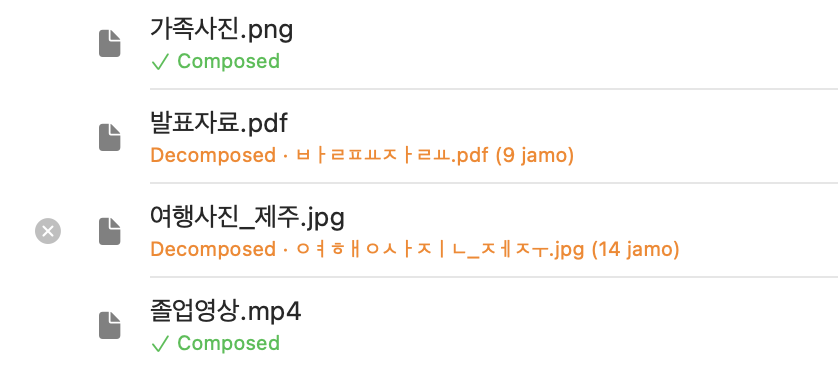
Conversion is two-way and reversible: anything you compose you can decompose again, and vice versa. NFC ⇆ NFD is a lossless mapping, so the bytes round-trip exactly.
Remove (and Remove All) only drops rows from the list — it never deletes from disk. That’s why the button says “remove”, not “delete”.
If something couldn’t be read (permissions, for instance), a “Couldn’t read n item(s)” warning appears below the list. Details shows each failed path and the reason, and dropping the same item again retries. See When a conversion fails for more.
You can also copy a row’s name to the clipboard with the copy button (shaped by the copy options below).
4. The Settings window
Settings… (from the menu-bar item, or ⌘, when the Dock icon is on) opens Preferences, organized into tabs:
- General — app behavior: Launch at login, Automatically check for updates (direct-download version), Always on top, the global Hotkey recorder, and Export / Import / Reset for all your settings.
- Features — how names are handled: recurse into dropped folders, and how a name is shaped when copied (compose to NFC, include the extension).
- Notifications — conversion-result notifications: the Enable notifications master switch, the macOS permission status (a shortcut to System Settings when denied, Request Permission… while undecided), and the Notify About selection.
- UI — how the app looks: Language, Appearance (Light / Dark / System), and Show in Dock.
- Quick Options — choose which options appear in the main window’s quick bar, and drag to reorder them.
- Developer — an optional log window (off by default; see below).
- About — app icon, version, Check for Updates… (direct-download version), Support (opens this site), View Licenses, copyright.
- Sponsor — JamoMoa is free; this tab is there only if you want it. The direct-download version links out to GitHub Sponsors and PayPal; the Mac App Store version offers a “Buy me a coffee” tip via in-app purchase.
5. Quick options
The collapsible Quick Options bar at the bottom of the main window mirrors the most-used Features toggles so you don’t have to open Settings:
- Add folder contents too — when a folder is dropped, add its files and subfolders recursively
- Always on top — float the main window above other apps
- Compose name — copy the composed (NFC) name to the clipboard; off copies the name as-is on disk (no transformation)
- Include extension — copy a file’s extension along with the name (folder names are always copied whole)
- Show conversion result notifications — banner results for window-less conversions like Finder right-click (only listed while the master switch in Settings ▸ Notifications is on)
Pick which of these show in the bar, and their order, under Settings ▸ Quick Options.
6. Finder right-click and Shortcuts
You can convert without opening the JamoMoa window at all.
- Finder — select files or folders and right-click → JamoMoa: Compose / Decompose / Open. Compose and Decompose run on the selection right there and report the result as a notification; Open sends it to the preview list for review.
- Shortcuts — four actions for automation: Compose Files / Decompose Files / Compose Text / Decompose Text.
See Finder right-click & Shortcuts for the details.
7. Global hotkey
Under Settings ▸ General ▸ Hotkeys you can record a system-wide shortcut that brings the main window forward from anywhere — handy for a menu-bar app whose window is usually out of sight. The default is empty, so nothing is intercepted until you opt in.
8. Language and appearance
Settings ▸ UI ▸ Display has pickers for Language (System / 한국어 / English / 日本語 / Tiếng Việt) and Appearance (System / Light / Dark). Appearance applies instantly; changing the language needs a relaunch (macOS caches the bundle language at process start), and JamoMoa offers to relaunch for you.
9. Back up your settings
Settings ▸ General can Export all your settings to a .plist file, Import them on another Mac, or Reset everything to defaults (with a confirmation). Only real preferences are saved — window positions and other system state are left out.
10. Developer mode (optional)
Turn on Settings ▸ Developer ▸ Enable Developer Mode to unlock a log window (open it with Open Log Window). It records every compose / decompose / copy event with a timestamp, shows decomposed names spelled out jamo-by-jamo so byte-level differences are visible, and can be searched and saved to a text file. The log persists across launches. Most users never need this.